First time installing Ignyq™ on Windows?
What you'll see
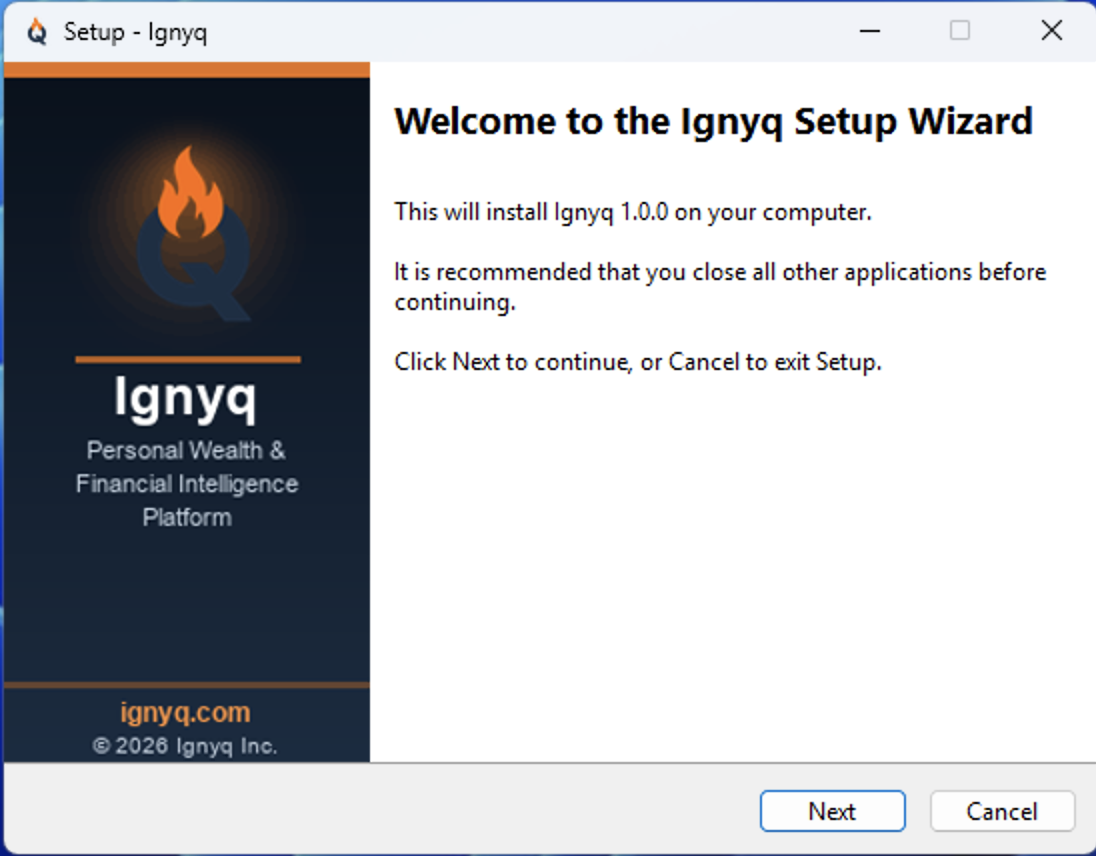
When you double-click the Ignyq™ installer, you'll normally go straight to the Setup Wizard shown below. Because Ignyq™ is EV code-signed, Windows SmartScreen recognizes the Ignyq Inc. publisher signature immediately, so the "Windows protected your PC" screen that most new apps trigger usually doesn't appear at all.
If you do see it — most often on a brand-new Windows profile that hasn't synced SmartScreen data yet — it does not mean Ignyq™ contains malware. It's SmartScreen being cautious, and the three steps below clear it.
If you see a SmartScreen prompt: three clicks
Click "More info"
The small text link appears below the warning headline. This expands the dialog to reveal publisher information.
Verify the publisher
You should see Publisher: Ignyq Inc. If it says anything else, close the dialog and re-download from ignyq.co/download.
Click "Run anyway"
A new "Run anyway" button appears at the bottom of the dialog. Click it to start the installer. You only do this once per version.
Why you usually won't see a warning
Microsoft SmartScreen uses a publisher-reputation system to flag unfamiliar software. Ignyq™ is signed with an Extended Validation (EV) code-signing certificate from SSL.com — the tier Microsoft trusts on first sight — so the Ignyq Inc. signature is recognized immediately and SmartScreen normally stays out of your way.
A prompt can still appear in a couple of edge cases: a very freshly installed Windows profile that hasn't synced SmartScreen data yet, or a PC running the stricter Smart App Control feature (see below). In both cases it's the same properly signed installer — the steps above (or below) let you proceed, and any such prompt clears on its own as Microsoft's cloud sees the signed build.
If Windows 11 blocks it with “Smart App Control”
A small number of Windows 11 PCs have a stricter feature called Smart App Control (SAC) turned on — it’s enabled only on some clean Windows 11 installs. Unlike the SmartScreen warning above, SAC has no “Run anyway” button: it blocks brand-new apps until Microsoft’s cloud service has built reputation for that exact signed build.
This is a reputation-timing issue, not a sign that Ignyq™ is unsafe. Every Ignyq™ build is code-signed by IGNYQ, INC. via SSL.com and timestamped. As downloads accumulate, Microsoft recognizes the signature and the block clears automatically — for everyone, on future builds. (We also submit each signed release to Microsoft for analysis to speed this up.)
If Smart App Control blocks Ignyq™ and you need it right away:
- Wait a short period and re-download — reputation for a new release typically builds within days; or
- On your own PC, turn Smart App Control off: Settings → Privacy & security → Windows Security → App & browser control → Smart App Control → Off. Microsoft makes this a one-way change by design — only do it on a device you control.
Most Windows users never see Smart App Control — it’s off by default on upgraded machines and on the majority of PCs.
Verify our signature yourself (advanced)
If you'd like to confirm the installer is genuinely signed by Ignyq Inc. before running it:
- Right-click the downloaded installer file (e.g.,
Ignyq-windows-x64-Setup.exe). - Choose Properties → Digital Signatures tab.
- You should see a signature from Ignyq Inc. (issued by SSL.com).
- Click Details → View Certificate to inspect the full certificate chain.
- Confirm the SHA-256 hash of the file matches the value published on our download page.
Need help?
If the installer fails, the warning won't dismiss, or you're unsure whether the file you downloaded is genuine — we're here. Email support@ignyq.co and we'll respond within one business day.
Include the following if you can:
- Your Windows version (e.g., Windows 11 Home 24H2)
- The exact filename you downloaded
- A screenshot of the warning you're seeing