Installing Ignyq™ on macOS
Three steps
- Open the downloaded DMG (e.g.,
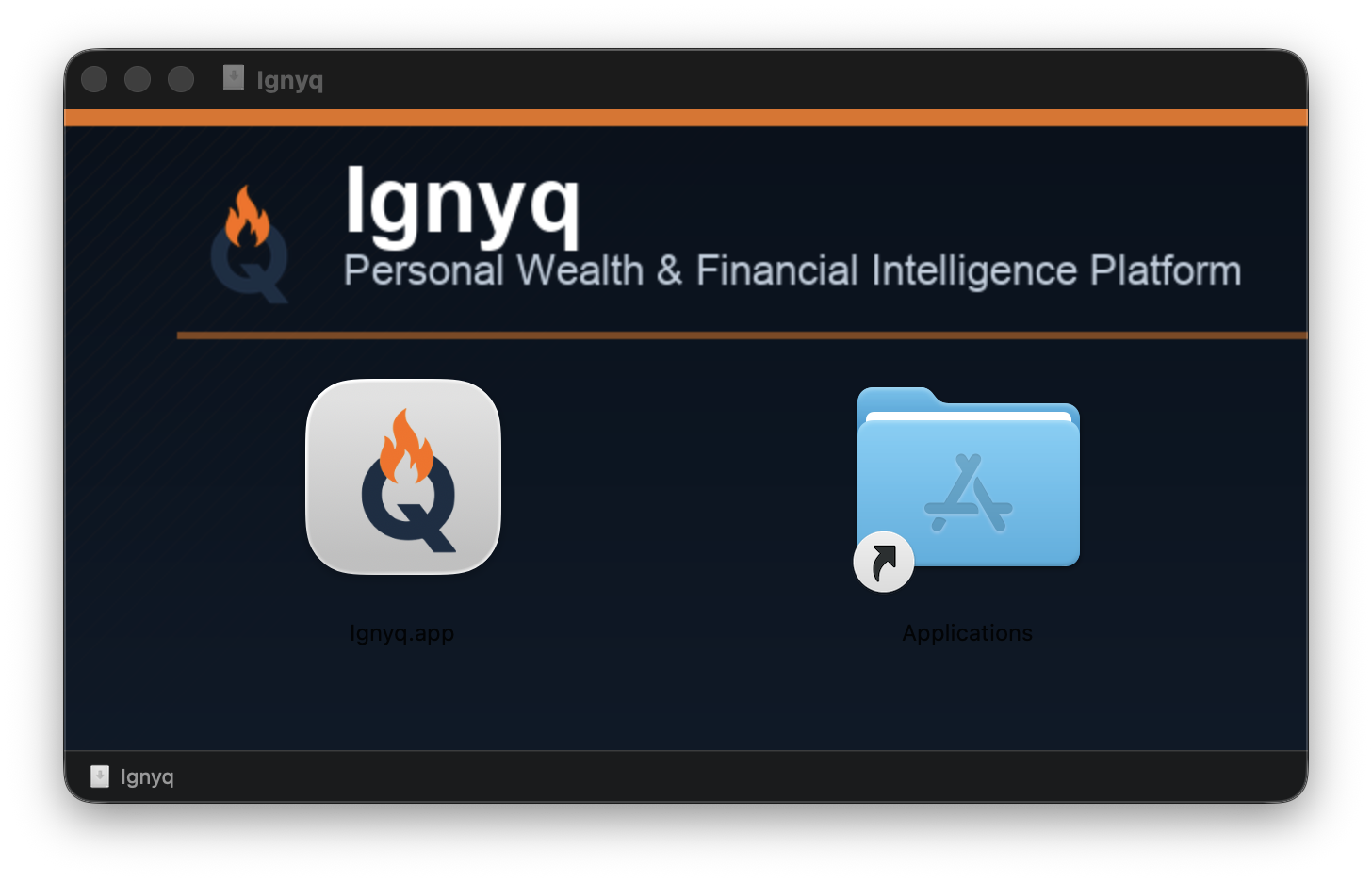
Ignyq-mac-arm64.dmg). - Drag the Ignyq™ icon onto the Applications folder shortcut in the DMG window.
- Launch Ignyq™ from your Applications folder, Spotlight, or Launchpad. Eject the DMG when done.
The first launch may take 5–10 seconds longer than subsequent launches as macOS verifies the notarization ticket. You should not see a Gatekeeper warning. If you do, see the troubleshooting section below.
System requirements
Ignyq™ for macOS is built natively for Apple Silicon (M1/M2/M3/M4). It also runs on Intel Macs via macOS Rosetta 2 — no separate download required.
System requirement: macOS 13 Ventura or later.
Verify our signature (advanced, optional)
If you'd like to confirm the .app is genuinely signed by Ignyq Inc. and notarized by Apple before launching it, open Terminal and run:
1. Verify the code signature:
codesign --verify --deep --strict --verbose=2 /Applications/Ignyq.app
Expected output includes satisfies its Designated Requirement and valid on disk.
2. Verify the notarization ticket:
spctl --assess --type execute --verbose /Applications/Ignyq.app
Expected output: /Applications/Ignyq.app: accepted followed by source=Notarized Developer ID.
3. Confirm the Developer ID matches Ignyq Inc.:
codesign -dv --verbose=4 /Applications/Ignyq.app 2>&1 | grep "Authority"
You should see Developer ID Application: Ignyq Inc. in the certificate chain.
If something goes wrong (rare)
Notarization should make the install warning-free. The scenarios below are rare and usually mean the DMG was modified in transit (third-party extractor, AirDrop quirk, or a manual copy from someone else's machine). If you hit one, the fixes are quick.
"Cannot be opened because the developer cannot be verified"
You shouldn't see this if you downloaded directly from ignyq.co/download. If you did:
- Right-click (or Control-click) Ignyq™ in Applications.
- Choose Open from the context menu.
- Click Open in the dialog that appears.
macOS Sequoia 15+ — "Open Anyway" via System Settings
If the right-click trick doesn't show an Open button on Sequoia 15 or later:
- Try to launch Ignyq™ normally; let the warning appear and close it.
- Open System Settings → Privacy & Security → scroll to the Security section.
- You'll see "Ignyq was blocked from opening because…"
- Click Open Anyway, confirm with password or Touch ID.
"App is damaged and can't be opened"
This message is misleading — Ignyq™ isn't damaged. It usually means the quarantine attribute was applied but the notarization ticket was stripped (commonly by a third-party extractor or an old archive utility). Open Terminal and run:
xattr -dr com.apple.quarantine /Applications/Ignyq.app
Then launch normally. Or re-download the DMG fresh from ignyq.co/download — that's the cleaner fix.
Need help?
If installation fails or you're unsure whether the file is genuine — we're here. Email support@ignyq.co and we'll respond within one business day.
Include if possible:
- Your macOS version (Apple menu → About This Mac)
- Whether your Mac is Apple Silicon or Intel
- The exact filename you downloaded
- A screenshot or copy of the error message